RAM Basics
Understanding computer memory and its role in system performance.
Table of contents
- What is RAM?
- How RAM Works
- RAM Characteristics
- RAM and Performance
- Virtual Memory
- Memory Management
- Best Practices
- Hands-On Practice
- Troubleshooting Memory Issues
- Memory Optimization Tips
- RAM Upgrade Considerations
- Interactive Learning
- Next Steps
- Additional Resources
- RAM Management on Windows and Mac
What is RAM?
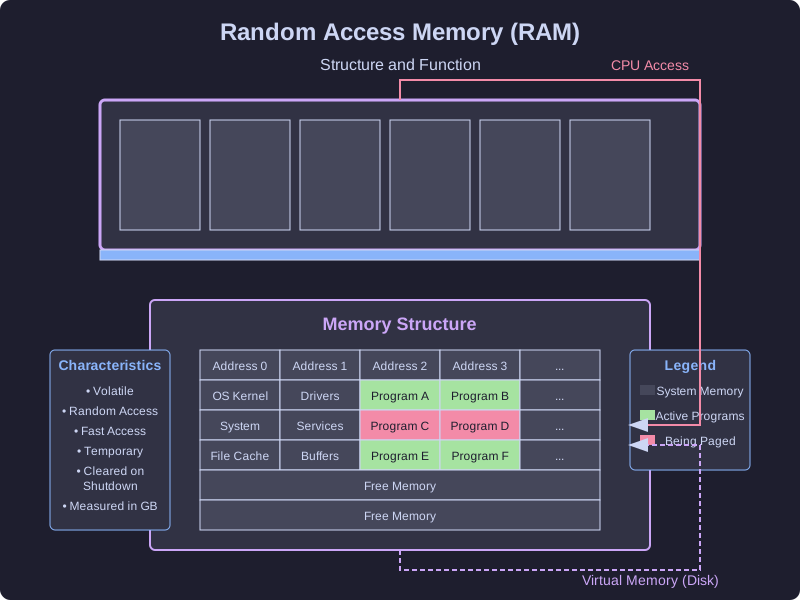
Random Access Memory (RAM) is your computer’s short-term memory that:
- Stores currently running programs
- Holds active data for quick access
- Provides fast read/write operations
- Clears when power is turned off (volatile)
📝 Key Concept
Think of RAM as your computer's workspace - it holds everything you're actively working on, but clears when you shut down.
How RAM Works
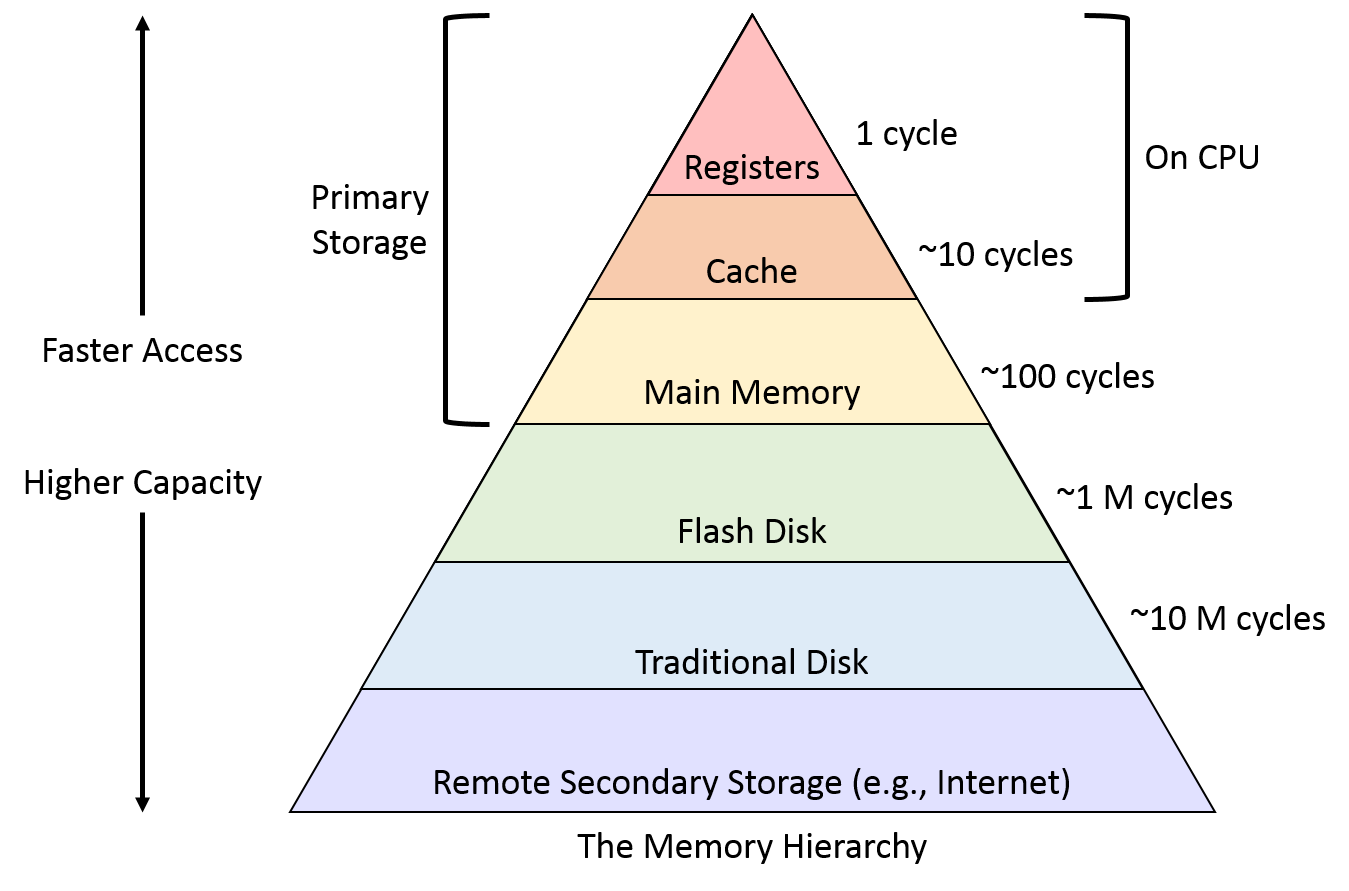
Memory Hierarchy
- CPU Registers
- Fastest memory in the computer
- Very small capacity (bytes)
- Built directly into the CPU
- Used for immediate calculations
- Cache Memory
- L1, L2, L3 cache levels
- Very fast access (nanoseconds)
- Small capacity (KB to MB)
- Expensive but critical for performance
- Stores frequently accessed data
- RAM
- Main system memory
- Fast access (compared to storage)
- Larger capacity (GB)
- Volatile storage (requires power)
- Holds all active programs and data
- Storage (HDD/SSD)
- Permanent storage
- Slower access (milliseconds)
- Large capacity (TB)
- Non-volatile (retains data without power)
- Stores all installed programs and files
❗ Speed vs. Capacity
As you move down the memory hierarchy, capacity increases but speed decreases.
RAM Characteristics
1. Volatile Memory
- Requires constant power to maintain data
- Clears completely on shutdown or power loss
- Temporary storage only
- Enables fast read/write operations
2. Random Access
- Any memory location can be accessed directly
- Equal access time to all data (unlike hard drives)
- No sequential reading needed
- Allows for efficient data retrieval
3. Speed
- Much faster than storage devices (SSDs/HDDs)
- Slower than CPU cache memory
- Measured in MHz/GHz (e.g., DDR4-3200)
- Critical for overall system responsiveness
4. Types of RAM
- DDR4: Current standard for most computers
- DDR5: Newer, faster standard being adopted
- LPDDR: Low-power version for mobile devices
- ECC RAM: Error-correcting memory for servers
RAM and Performance
Memory Usage Monitoring
# Windows Memory Info
wmic memorychip get capacity, speed

# View memory usage
taskmgr

# Detailed memory analysis
rammap

# Memory diagnostics
mdsched
Common Performance Issues
- Low Memory
- Slow system performance
- Frequent freezes or hangs
- Excessive disk activity (paging)
- Application crashes
- “Out of memory” errors
- Memory Leaks
- Gradually increasing memory usage
- Degrading performance over time
- Application instability
- Requires application restart
- Often caused by programming errors
- Memory Fragmentation
- Inefficient memory use
- Reduced available memory
- Slower memory allocation
- System slowdown over time
⚠️ Memory Warning
Running out of RAM forces your system to use much slower disk-based virtual memory, severely impacting performance.
Virtual Memory
What is Virtual Memory?
- Disk space used as an extension of RAM
- Managed automatically by the operating system
- Called “page file” (Windows) or “swap space” (Linux)
- Much slower than physical RAM (1000x or more)
- Allows running more programs than would fit in RAM
How Virtual Memory Works
- System detects it needs more memory than physically available
- Less frequently used data is moved from RAM to the page file
- This data is retrieved from disk when needed again
- This process is called “paging” or “swapping”
- Excessive paging causes “thrashing” (severe performance degradation)
# View page file usage (Windows)
wmic pagefile list /format:list

# Configure page file (Windows PowerShell, admin)
Get-WmiObject Win32_PageFileSetting

# View swap usage (Linux)
free -h
Memory Management
1. Application Memory
- Program code (instructions)
- Data structures (arrays, objects)
- Temporary variables
- Cached content
- User interface elements
2. System Memory
- Operating system kernel
- Device drivers
- System services
- File cache
- System buffers
3. Shared Memory
- Used by multiple programs
- System resources
- Common libraries (DLLs)
- Cached data
- Inter-process communication
4. Memory Allocation
- Static allocation: Fixed at compile time
- Stack allocation: Local variables, function calls
- Heap allocation: Dynamic memory, managed by programs
- Memory pools: Pre-allocated blocks for efficiency
Best Practices
1. Memory Usage
- Close unused programs to free up RAM
- Monitor memory usage patterns
- Manage browser tabs (major RAM consumers)
- Limit background tasks and startup programs
- Restart memory-intensive applications periodically
2. System Configuration
- Set appropriate page file size (1.5-2x RAM size)
- Perform regular system restarts to clear memory
- Clean startup items to reduce memory load
- Update drivers and operating system
- Consider ReadyBoost on older systems (Windows)
3. Hardware Considerations
- Install matched RAM modules when possible
- Use the maximum RAM supported by your system
- Consider faster RAM for better performance
- Ensure proper installation in correct slots
- Use RAM diagnostic tools to check for errors
💡 Browser Memory
Web browsers can use significant RAM. Consider using browser extensions like 'The Great Suspender' to manage tab memory usage.
Hands-On Practice
Try these monitoring tasks:
- Memory Analysis
# Open Resource Monitor (Windows)
resmon

# Memory diagnostic tool (Windows)
mdsched.exe

# RAM stress test (Windows PowerShell)
# Creates a large array to consume memory
powershell -command "$a = 1..1000000000; Start-Sleep 10"
- Usage Patterns
- Monitor total memory usage over time
- Check per-application memory consumption
- Observe page file activity during heavy usage
- Track memory trends during different activities
- Identify memory-intensive applications
Troubleshooting Memory Issues
1. Diagnosis
- Check Task Manager for memory usage
- Monitor resource usage patterns
- Review Windows Event Viewer for memory errors
- Test memory health with diagnostic tools
- Check for memory-related BSODs (Blue Screen of Death)
2. Solutions
- Close unnecessary programs to free up memory
- Increase page file size for virtual memory
- Add more physical RAM if consistently at capacity
- Check for and fix memory leaks in applications
- Repair or replace faulty RAM modules
3. Prevention
- Regular system maintenance
- Keep system and applications updated
- Perform periodic memory testing
- Monitor usage patterns
- Maintain adequate free space
Memory Optimization Tips
1. Software Management
- Uninstall unused programs to reduce memory load
- Update applications to their latest versions
- Clear temporary files that consume memory
- Manage startup items to reduce boot memory usage
- Use lightweight alternatives for memory-intensive applications
2. Browser Optimization
- Limit the number of open tabs (each consumes memory)
- Clear cache and history regularly
- Use memory-saving extensions and settings
- Monitor browser processes in Task Manager
- Consider alternative browsers with better memory management
3. System Settings
- Adjust visual effects for performance (Windows)
- Optimize page file size and location
- Configure startup programs to minimize memory usage
- Perform regular system maintenance
- Use ReadyBoost on systems with limited RAM (Windows)
RAM Upgrade Considerations
When to Upgrade
- Consistently high memory usage (>80%)
- Frequent paging to disk
- System slowdowns during multitasking
- “Out of memory” errors
- Running memory-intensive applications
What to Consider
- Compatibility: Check motherboard specifications
- Capacity: Maximum supported RAM
- Type: DDR3, DDR4, DDR5, etc.
- Speed: MHz rating (higher is better)
- Channels: Dual-channel vs. single-channel
- Form Factor: DIMM for desktops, SO-DIMM for laptops
Interactive Learning
Try these interactive exercises to better understand RAM concepts:
- Memory Usage Experiment
- Open Task Manager and note current RAM usage
- Open several large applications and browser tabs
- Observe how memory usage changes
- Close applications and watch memory get freed
- Virtual Memory Observation
- Run memory-intensive applications
- Monitor page file usage in Resource Monitor
- Observe disk activity during heavy paging
- Experience the performance impact of virtual memory
Next Steps
Continue exploring hardware concepts:
- CPU Basics: Learn how processors work with RAM
- How Semiconductors are Made: Understand the manufacturing process behind memory chips
- Command Cheatsheet: Useful memory monitoring commands and tools
Additional Resources
- Ada Computer Science - Memory Management
- Memory Testing Tools (MemTest86+)
- RAM Speed and Timing Calculator
- Performance Monitoring Guides
- System Optimization Tips
- Memory Troubleshooting Documentation
RAM Management on Windows and Mac
Windows
- Task Manager: Use Task Manager to monitor RAM usage and identify memory-intensive applications.
- Resource Monitor: Provides detailed memory usage statistics and helps in diagnosing memory issues.
- Virtual Memory Settings: Adjust page file size to optimize virtual memory usage.
- ReadyBoost: Use ReadyBoost to improve performance on systems with limited RAM.
Mac
- Activity Monitor: Use Activity Monitor to view memory usage and identify processes consuming significant RAM.
- Memory Pressure: Check the memory pressure graph to understand the system’s memory usage.
- Purge Command: Use the
purgecommand in Terminal to free up inactive memory. - Swap Usage: Monitor swap usage to ensure the system is not relying heavily on virtual memory.
These tools and techniques can help optimize RAM usage and improve system performance on both Windows and Mac platforms.