How Email Works
Understanding the complete journey of an email from sender to recipient.
Table of contents
- Introduction to Email Systems
- What Happens When You Send an Email?
- Key Components
- Email Journey Diagram
- MX Records and DNS
- Email Authentication
- Hands-On Demonstration: MX Record Lookup
- Optional: Email Authentication Check
- Common Email Issues and Troubleshooting
- Mini Troubleshooting Activity
- Email Best Practices
- Next Steps
- Additional Resources
Introduction to Email Systems
Email is one of the most widely used communication tools in the world. Understanding how it works helps you:
- Troubleshoot email issues
- Protect against email threats
- Make informed decisions about email services
What Happens When You Send an Email?
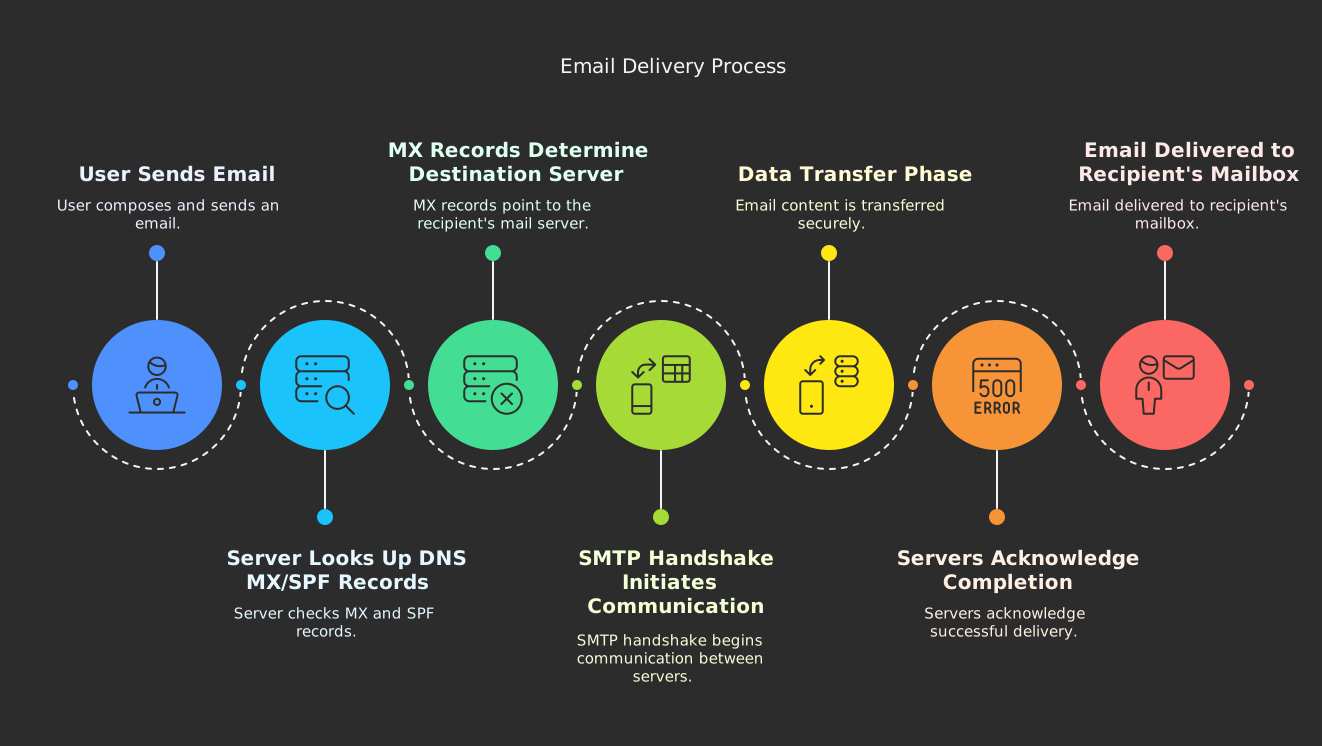
When you click “Send” in your email client, a complex series of steps begins:
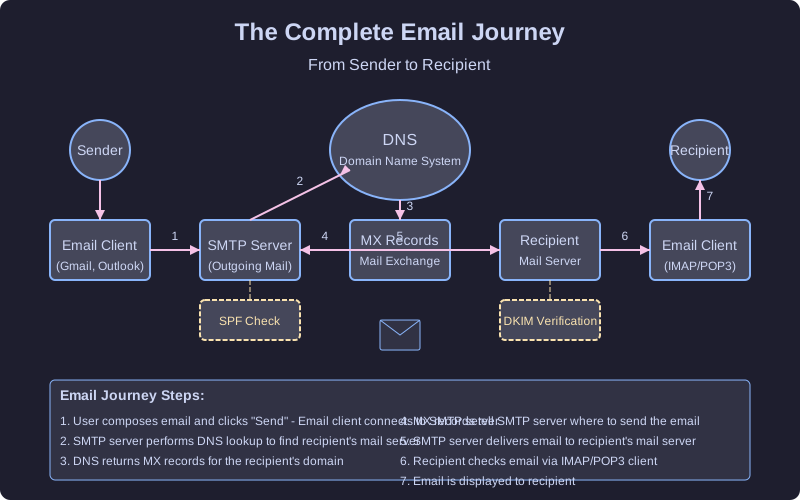
- Your Email Client connects to an SMTP (Simple Mail Transfer Protocol) server
- SMTP Server accepts your email and prepares to relay it
- DNS Lookup is performed to find the recipient’s mail server
- MX Records are retrieved, indicating which mail servers handle email for the recipient’s domain
- Email Delivery to the recipient’s mail server
- Recipient Retrieval when they check their inbox
Key Components
1. Email Clients
- Desktop applications: Outlook, Thunderbird, Apple Mail
- Web-based clients: Gmail, Yahoo Mail, Outlook.com
- Mobile apps: iOS Mail, Gmail app, Outlook mobile
2. Email Servers
- SMTP servers for sending outgoing mail
- POP3/IMAP servers for retrieving incoming mail
- Email storage systems for maintaining your inbox
3. Protocols
- SMTP (Simple Mail Transfer Protocol): For sending email
- POP3 (Post Office Protocol): For downloading email to a single device
- IMAP (Internet Message Access Protocol): For syncing email across multiple devices
Email Journey Diagram
MX Records and DNS
MX (Mail Exchange) records are a type of DNS record that specifies which mail servers are responsible for accepting email for a domain.
How MX Records Work:
- When an email is sent to user@example.com, the sending server performs a DNS lookup
- It specifically requests the MX records for example.com
- DNS returns a list of mail servers and their priorities
- The sending server attempts delivery to the highest priority server first
Email Authentication
Authentication Methods
- SPF (Sender Policy Framework): Verifies that sending servers are authorized
- DKIM (DomainKeys Identified Mail): Adds a digital signature to verify the message hasn’t been altered
- DMARC (Domain-based Message Authentication): Combines SPF and DKIM with reporting
Common Email Threats
- Phishing attempts
- Spam and unwanted messages
- Malware attachments
- Email spoofing and impersonation
Hands-On Demonstration: MX Record Lookup
Let’s try a simple command to see the mail servers for a domain:
nslookup -type=MX gmail.com
This command shows:
- The mail servers that handle email for gmail.com
- Their priority values (lower numbers = higher priority)
- The fully qualified domain names of the mail servers
Sample Output:
gmail.com	mail exchanger = 10 alt1.gmail-smtp-in.l.google.com.
gmail.com	mail exchanger = 20 alt2.gmail-smtp-in.l.google.com.
gmail.com	mail exchanger = 30 alt3.gmail-smtp-in.l.google.com.
gmail.com	mail exchanger = 40 alt4.gmail-smtp-in.l.google.com.
gmail.com	mail exchanger = 5 gmail-smtp-in.l.google.com.
Optional: Email Authentication Check
You can also check a domain’s SPF record:
nslookup -type=TXT gmail.com
This shows the TXT records for the domain, which include SPF information that helps validate email sources.
Learn more about the Email Journey
Common Email Issues and Troubleshooting
Various issues can affect email service:
- Sending problems: SMTP server issues, authentication failures
- Receiving problems: Full mailbox, server downtime, filtering
- Authentication failures: Incorrect credentials, security blocks
- Delivery delays: Server congestion, greylisting, routing issues
Mini Troubleshooting Activity
Scenario: Your emails aren’t being delivered
Steps to diagnose:
- Check your internet connection
- Verify your SMTP server settings
- Look up the recipient domain’s MX records
- Check if your domain has proper SPF records
- Test with a different recipient or email service
Try this command to check if the recipient’s mail servers are accessible:
ping alt1.gmail-smtp-in.l.google.com
Email Best Practices
1. Email Management
- Regular inbox cleanup and organization
- Create folders for important categories
- Archive rather than delete when possible
- Use filters and rules to automate sorting
2. Security Practices
- Use strong, unique passwords for email accounts
- Enable two-factor authentication
- Be cautious with attachments and links
- Regularly update email clients and security software
3. Professional Usage
- Write clear, concise subject lines
- Use professional formatting and signatures
- Respond in a timely manner
- Double-check recipients before sending sensitive information
Next Steps
- Explore the detailed Email Journey to understand each step in depth
- Learn about Email Troubleshooting techniques
- Practice the hands-on exercises with different domains
- Try setting up email forwarding or filters in your own account
Additional Resources
- Email Security Best Practices
- Common Email Commands
- Command Cheatsheet
- Email Protocol Specifications