The Journey of an Email
Following an email’s path from sender to recipient.
Table of contents
- Overview
- Step-by-Step Journey
- Examining Email Headers
- Common Delivery Issues
- Best Practices for Reliable Delivery
- Next Steps
- Additional Resources
Overview
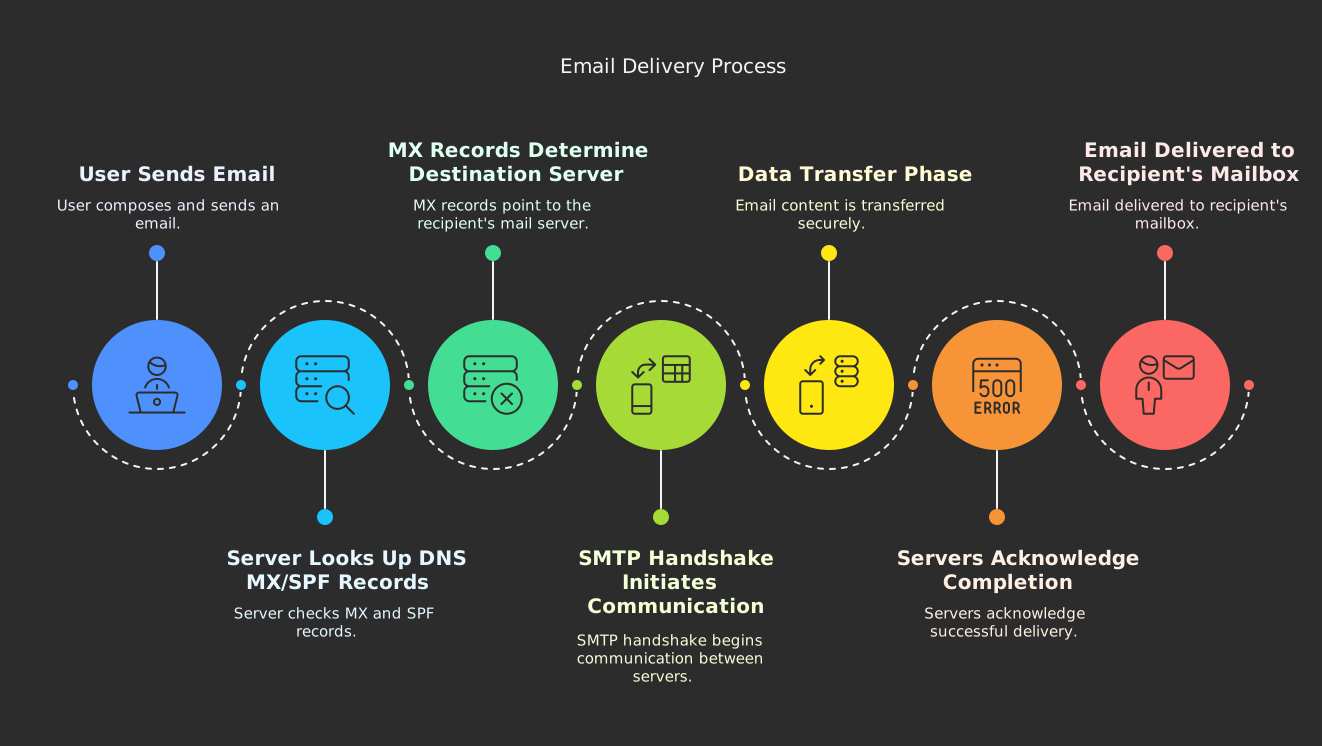
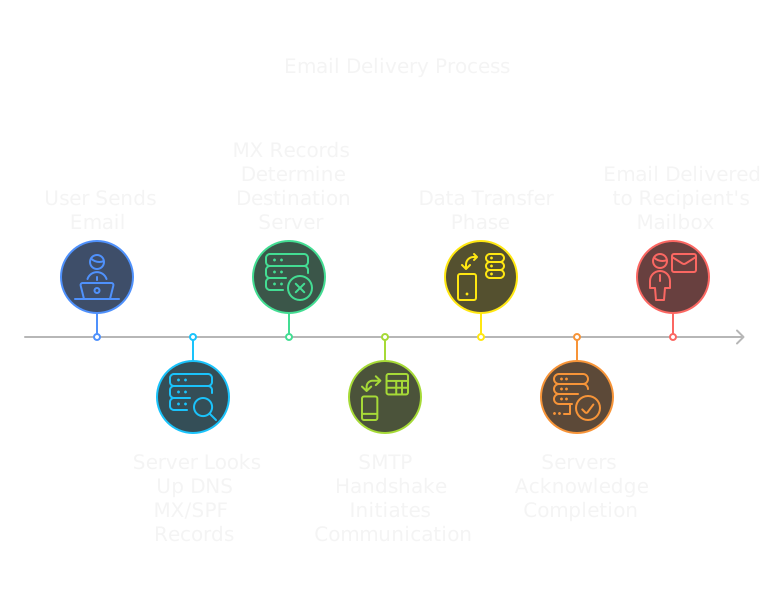
When you click “Send” on an email, it triggers a complex journey involving multiple servers, protocols, and security checks before reaching its destination.
📝 Key Concept
Email delivery relies heavily on DNS, specifically MX records, to determine where to deliver messages.
Step-by-Step Journey
1. Composition and Initial Send
When you compose and send an email:
- Your email client formats the message
- Attachments are encoded
- Headers are added (From, To, Subject, etc.)
💡 Email Headers
Headers contain important routing information and metadata about the email's journey.
2. SMTP Server Connection
Your email client connects to its SMTP server:
# Example SMTP connection process
220 smtp.gmail.com ESMTP ready
HELO client.example.com
250 Hello client.example.com
MAIL FROM: <sender@example.com>
250 Sender OK
RCPT TO: <recipient@domain.com>
250 Recipient OK
DATA
354 Start mail input
3. DNS Lookup Process
The SMTP server performs several DNS lookups:
- MX Record Lookup
# Check MX records
nslookup -type=mx recipient-domain.com
- Authentication Records
# Check SPF and DKIM records
nslookup -type=txt recipient-domain.com
❗ MX Records
MX (Mail Exchange) records tell email servers which mail servers are responsible for accepting email for a domain.
4. Email Authentication
Multiple authentication methods work together:
- SPF (Sender Policy Framework)
- Verifies sending server is authorized
- Prevents email spoofing
- Uses DNS TXT records
- DKIM (DomainKeys Identified Mail)
- Adds digital signature
- Ensures email hasn’t been modified
- Verifies sender domain
- DMARC (Domain-based Message Authentication)
- Combines SPF and DKIM
- Sets handling policy for failures
- Reports authentication results
5. Server-to-Server Transfer
Once authenticated:
- Sending server establishes connection
- Messages transferred via SMTP
- Multiple hops may occur
- Progress tracked in headers
6. Recipient Server Processing
The receiving mail server:
- Accepts the incoming connection
- Performs security checks
- Scans for malware
- Applies spam filtering
- Stores message for retrieval
7. Final Delivery
Recipients can access their email through:
- POP3: Downloads and typically deletes from server
- IMAP: Syncs across devices, keeps on server
- Web Interface: Direct server access
Examining Email Headers
Email headers reveal the journey:
Received: from mail-yw1-f41.google.com
Received: from smtp.gmail.com
Authentication-Results: spf=pass dkim=pass
💡 View Headers
Most email clients let you view complete headers through a 'Show Original' or similar option.
Common Delivery Issues
1. Bounced Emails
- Invalid recipient address
- Server rejection
- Mailbox full
- Network issues
2. Delayed Delivery
- Server congestion
- Greylisting
- Rate limiting
- DNS issues
3. Authentication Failures
- SPF record mismatch
- DKIM signature failure
- Missing DMARC policy
Best Practices for Reliable Delivery
- Sender Configuration
- Proper DNS records
- Valid reverse DNS
- Updated SSL/TLS certificates
- Content Guidelines
- Avoid spam triggers
- Proper formatting
- Reasonable attachment sizes
- Server Maintenance
- Regular updates
- Monitor blacklists
- Keep logs for troubleshooting
Next Steps
Continue to Email Troubleshooting to learn how to diagnose and fix common email issues.
Additional Resources
- Email protocol specifications
- Authentication setup guides
- Command Cheatsheet