Computer Hardware Fundamentals
Understanding the components that power computers, from silicon to processing and memory.
Table of contents
- Introduction to Computer Hardware
- Core Components
- How Components Work Together
- Hands-On Demonstration
- Real-World Impact
- Mini Troubleshooting Activity
- Best Practices for Optimal Performance
- Understanding Computer Specifications
- Next Steps
- Additional Resources
Introduction to Computer Hardware
Modern computers are complex machines built from various components working together. Understanding the basic hardware components helps you:
- Diagnose performance issues
- Make informed upgrade decisions
- Understand how your devices process information
- Troubleshoot common problems
❗ Key Concept
While computers have many components, understanding semiconductors, CPU, and RAM provides the foundation for how modern computers are made, process information, and temporarily store data.
Core Components
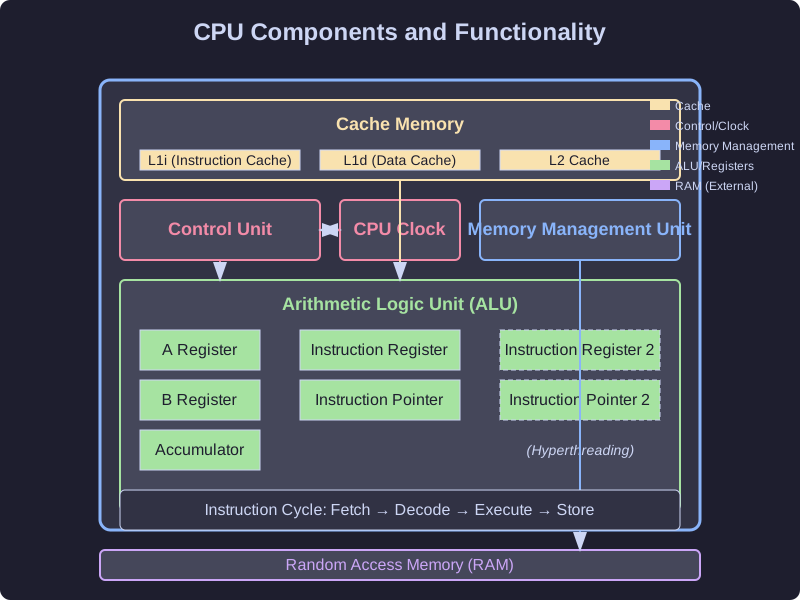
1. CPU (Central Processing Unit)
The “brain” of the computer that:
- Executes instructions using the fetch-decode-execute cycle
- Performs calculations and logical operations
- Coordinates other components
- Operates at a specific clock speed (measured in GHz)
- May have multiple cores for parallel processing
2. RAM (Random Access Memory)
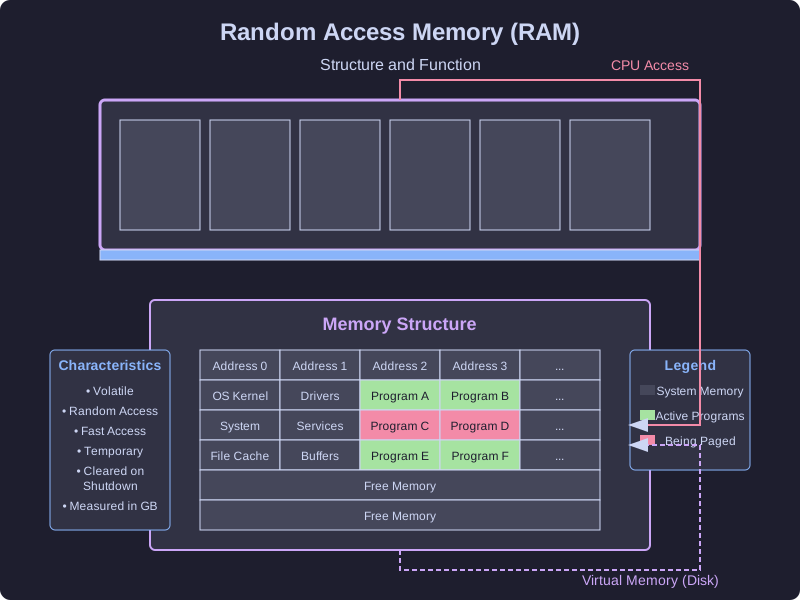
The computer’s “short-term memory” that:
- Stores active programs and current data
- Provides fast access compared to storage drives
- Is volatile (contents are lost when power is off)
- Has a specific capacity (measured in GB)
- Affects how many programs can run simultaneously
3. Semiconductor Manufacturing
The foundation of modern computing:
- Transforms silicon (sand) into thinking machines
- Creates billions of transistors on a single chip
- Involves some of the most precise manufacturing on Earth
- Requires extreme purity and clean environments
- Enables the continuous advancement of computing power
Learn more about Semiconductors
How Components Work Together
📝 System Integration
The CPU and RAM work together closely - the CPU processes instructions stored in RAM, which holds both the programs and their data.
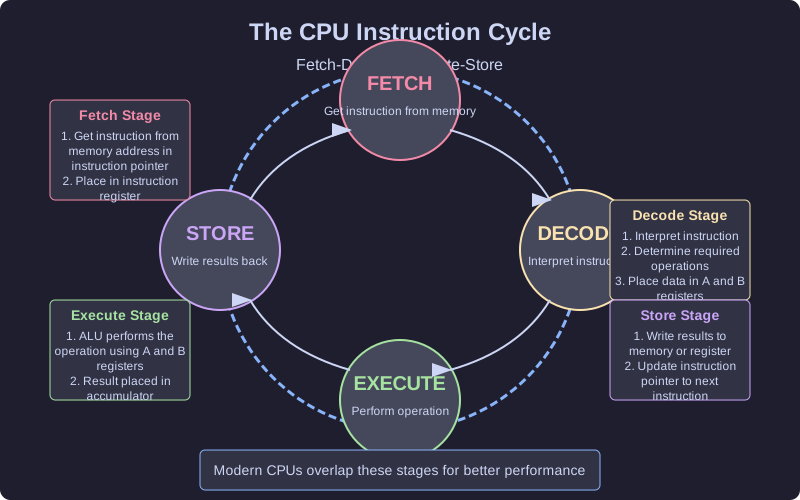
The Fetch-Decode-Execute Cycle
The fundamental process that powers all computing:
- Fetch: CPU retrieves an instruction from RAM
- Decode: CPU determines what the instruction means
- Execute: CPU performs the instruction
- Store: Results are written back to RAM
- Repeat: The cycle continues millions of times per second
Hands-On Demonstration
Using Task Manager (Windows)
# Open Task Manager
taskmgr
Task Manager shows:
- Current CPU usage percentage
- Memory (RAM) usage
- Running processes and their resource consumption
- Performance history graphs
Using Terminal (Mac/Linux)
# View system resources
top

# Memory information
free -h
💡 Try It Yourself
Open your computer's Task Manager (Windows) or Activity Monitor (Mac) and observe how CPU and RAM usage changes as you open and close programs.
Real-World Impact
When CPU is Overloaded:
- System becomes sluggish
- Programs respond slowly
- Operations take longer to complete
- Computer may feel hot as the processor works harder
When RAM is Insufficient:
- System slows down dramatically
- Programs may crash
- Computer starts using disk space as virtual memory (much slower)
- You may see “out of memory” errors
Mini Troubleshooting Activity
Scenario: Your computer is running slowly
Steps to diagnose:
- Open Task Manager/Activity Monitor
- Check CPU usage - is it consistently near 100%?
- Check RAM usage - is it nearly full?
- Identify which processes are using the most resources
- Determine if you need to close programs, add more RAM, or upgrade your CPU
⚠️ Resource Hogs
Some common causes of high resource usage include web browsers with many tabs, video editing software, games, and malware.
Best Practices for Optimal Performance
1. Software Management
- Close unused programs to free up RAM
- Limit startup programs that run automatically
- Keep your operating system and applications updated
- Restart your computer regularly to clear RAM
2. Hardware Maintenance
- Ensure proper ventilation for cooling
- Clean dust from air vents periodically
- Monitor temperatures during intensive tasks
- Consider upgrading RAM if consistently at capacity
3. When to Upgrade
- When multiple programs run slowly simultaneously
- When newer software requires more resources
- When Task Manager consistently shows high usage
- When your work or activities are being limited
Understanding Computer Specifications
When buying or upgrading a computer, these are key specifications to understand:
CPU Specifications
- Clock Speed: How many cycles per second (e.g., 3.2 GHz)
- Cores: Number of processing units (e.g., quad-core, octa-core)
- Cache: Small, very fast memory built into the CPU
- Architecture: Design and instruction set (e.g., x86, ARM)
RAM Specifications
- Capacity: Total memory available (e.g., 8GB, 16GB)
- Type: Technology generation (e.g., DDR4, DDR5)
- Speed: How quickly data can be accessed (e.g., 3200 MHz)
- Channels: How memory communicates with the system
❗ Safety First
Always shut down your computer properly before making any hardware changes, and avoid opening your computer unless you're qualified to do so.
Next Steps
- Explore CPU Basics for a deeper understanding of processors
- Continue to RAM Basics for more on memory concepts
- Learn about How Semiconductors are Made to understand the foundation of computing
- Practice monitoring your system resources using Task Manager
- Try the troubleshooting activity with your own computer
Additional Resources
- Hardware Troubleshooting Guide
- System Monitoring Tools
- Command Cheatsheet
- Performance Optimization Tips